

Self Order Kiosks for Restaurants
Plan a restaurant self order kiosk with the right location, touch friendly menu, accessible fallback, secure device setup and a careful service pilot.
6 min read
On this page
In short: a self order kiosk can reduce pressure on a counter when guests can browse and build ordinary orders without help. It needs a touch friendly menu, clear payment flow, accessible staffed alternative and reliable kitchen routing. Start with one device and measure completed orders, assistance and errors before adding more.
DineHarbor's self order kiosk is available on Growth and higher plans. Growth includes up to two kiosk devices per location; current limits are on the pricing page.
Where a kiosk can help
A kiosk is useful when a queue forms mainly because guests need time to read the menu or customise familiar products. It gives them space to browse while counter staff handle cash, questions, collection and hospitality.
Quick service restaurants, food halls and busy takeaway counters are common candidates. A kiosk can also display available languages consistently. DineHarbor menu translations support English, Arabic, Spanish and French.
The device does not create capacity in the kitchen. If order entry becomes faster than preparation, the queue moves from the counter to collection. Set honest wait expectations and watch the full journey.
Do not remove every staffed point. Guests may need to pay cash, discuss an allergy, request assistance or simply prefer a person. The kiosk is another route, not a test they must pass.
Choose the right location
Place the kiosk where entering guests can see it without blocking the door, counter queue or collection area. Give users room to stand and move aside. Consider wheelchair approach, screen reach, glare, sound and privacy.
Power and network cables must be secure and away from walking routes. The mount should suit the device and commercial setting. Follow the hardware maker's safety and accessibility instructions and obtain professional installation where needed.
Watch how people move during a real peak before fixing anything to a wall. A quiet floor plan can behave differently when delivery drivers and waiting customers arrive.
Put a simple sign above the device that says what it does. Avoid a wall of instructions. The first screen should make the next action obvious.
Design the menu for touch
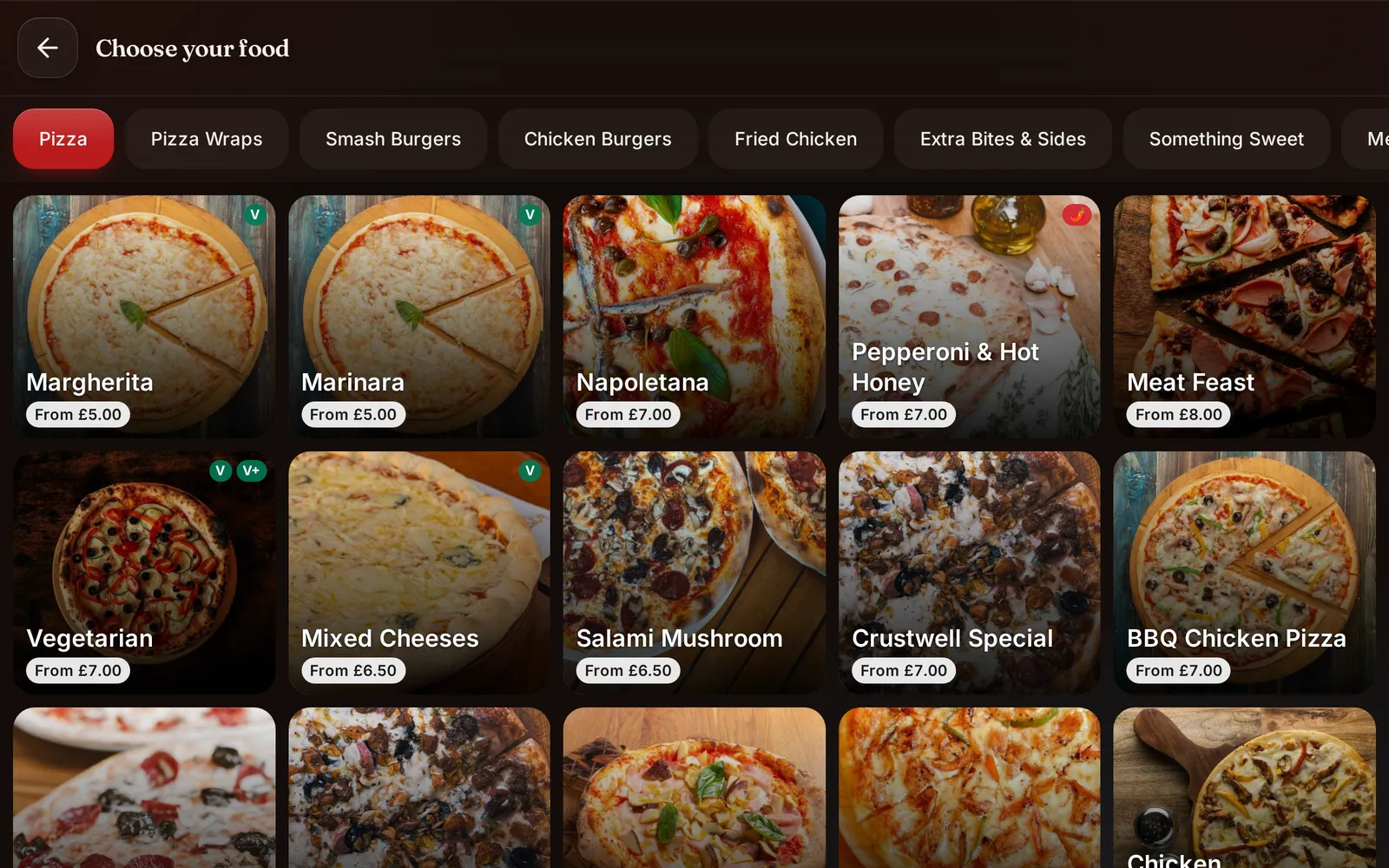
A till menu built for trained staff is rarely a good guest kiosk menu. Guests need readable categories, large targets, plain names and helpful pictures where available.
Keep the first level short. Put popular categories within reach without hiding the rest. Search can help a large menu, but it should not be the only way to find food.
Options need particular care. Mark required choices clearly, explain extra prices before selection and keep maximum choices visible. Show a useful basket summary after each product so guests can correct mistakes.
Avoid manipulative prompts. Suggesting a relevant side can be helpful; making the decline button hard to find is not. A calm flow earns more trust than pressure.
Test at 360 pixels as well as on the intended large screen because the same customer menu may be used elsewhere. Long names must wrap, prices must remain associated with the item and Arabic must display right to left correctly.
Accessibility and assistance
Review physical reach, text size, contrast, focus order, screen reader support where applicable, audio and time limits. Accessibility duties depend on location and business, so get qualified advice rather than relying on a software label.
Keep a staffed ordering route with the same products and prices. Train staff to offer help without taking control from someone who is using the kiosk successfully.
DineHarbor supports voice ordering on the kiosk. Voice may help some guests find products, but noise, speech differences and privacy can make it unsuitable for others. Keep touch controls available and never rely on voice alone for an allergy decision.
Read the AI voice ordering guide before enabling it.
Secure and lock down the device
A public kiosk should open only the intended ordering experience. Use the operating system's kiosk controls, a restricted device account and the DineHarbor device setup. Do not leave browser settings, notifications or other apps accessible.
Protect staff actions with separate authentication. A guest should not be able to reach menu editing, refunds or device configuration. Position the device so cables and ports are not casually accessible.
Plan updates outside service. Test the kiosk after an operating system or app update before returning it to the floor. Keep a record of the device, location and responsible manager.
Clean the screen using the maker's instructions. Hygiene matters, but liquid or harsh chemicals can damage a device. Provide another ordering route while it is being cleaned or repaired.
Connect payment and kitchen routing
Decide which configured online payment methods the kiosk will offer and what happens when payment fails. Card processing belongs to the restaurant's payment provider. DineHarbor does not take commission on the order.
The success screen needs a clear order number and collection instruction. Do not tell a guest to wait without explaining where names or numbers are called.
Send kiosk orders to the same kitchen queue as other channels. The ticket should identify the source but use the same product, modifier and station structure. Test one item for every station and a deal with several components.
If the network fails, the kiosk ordering route may not complete even though operator apps have offline capabilities. Define the exact fallback: cover the kiosk, direct guests to staff and avoid repeated payment attempts until status is known.
Pilot one kiosk
Watch the kiosk self order guide, then configure one device with a limited, approved menu. Run staff test orders that include options, unavailable products, discounts, an abandoned basket and failed payment.
Launch during a manageable service with a team member nearby. Record:
- Sessions started and orders completed.
- Where guests ask for help.
- Abandoned baskets.
- Payment failures and duplicate concerns.
- Incorrect orders or kitchen questions.
- Counter and kitchen waiting times.
Do not judge only by kiosk sales. Some guests moved from the counter, so total service throughput and error rate matter more. Ask staff whether the device reduced or merely moved their work.
Review the menu after the first week. Remove unclear prompts, fix option names and move common products. Add a second device only when the first one has a clear role and the floor has room.
Common mistakes
The first mistake is copying a staff till layout. The second is removing human help. Others include placing the kiosk in the queue, hiding added prices, allowing sold out products, using tiny option controls and leaving no plan for failed payments.
A kiosk should not make a guest feel watched or rushed. Avoid unnecessary personal data, explain account benefits plainly and keep marketing consent separate from ordering.
The strongest kiosk setup is almost unremarkable. Guests who want it can order easily, guests who do not can speak to staff, and the kitchen receives a complete ticket either way.
Set a daily owner for opening and closing checks. They should confirm the menu date, payment route, printer or kitchen connection, physical mount and screen condition before guests arrive. At close, review unfinished sessions and report faults instead of leaving them for the next shift.
Ready to pilot one kiosk with your real menu? Start the 30 day free trial with no card needed.
Questions and answers
When does a restaurant kiosk help most?
It can help where counter queues form and guests can choose from a well structured menu. It should not remove the staffed ordering route.
Which DineHarbor plan includes kiosks?
The kiosk app is included on Growth and higher plans. Growth currently allows two kiosk devices per location.
Can guests order by voice at a kiosk?
DineHarbor supports AI voice ordering on the kiosk. Keep touch controls and staff help available because voice will not suit every guest or request.
See it in DineHarbor
About the author
Editorial team
The DineHarbor team writes this blog for restaurant owners and managers. Every article is checked against the product before it is published, so what we describe is what the software does.
All articles by DineHarbor team