
Serve Tables With a Waiter App
Use a waiter app to open tables, record seats, split bills, hold courses and send clear orders to the kitchen while keeping hospitality calm and personal.
6 min read

On this page
Key takeaways
- A waiter app lets staff open a table, send structured orders, pace courses and take payment without rewriting notes at a till.
- Make the digital floor match the real room, and walk it with each device to find dead zones before service.
- Practise split bills and course changes in a rehearsal, and use the recorded payment state rather than mental arithmetic.
- Use individual staff identities on shared devices, and keep the device low enough to protect eye contact and hospitality.
In short: a waiter app lets staff open a table, add guests and items, send structured orders, pace courses and take payment without rewriting notes at a till. It should support conversation rather than pull attention into a screen. Configure the floor and menu clearly, then practise exceptions before live service.
DineHarbor's waiter handheld works with its POS and kitchen display. Waiter phones are included on every public plan, with device limits shown on pricing.
Set up the floor before service
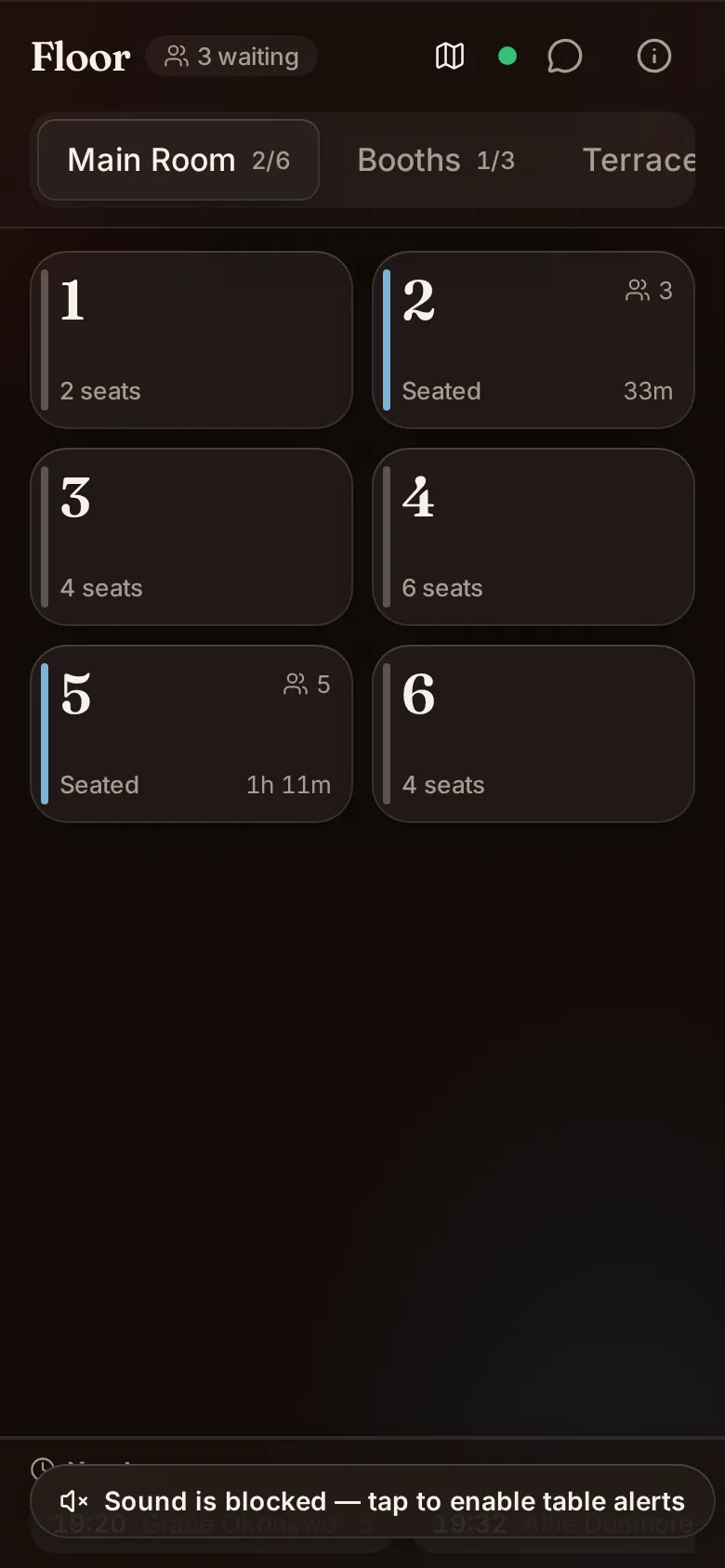
Give every table a stable name or number that staff can recognise quickly. Map indoor, outdoor and private areas, and avoid duplicate names that sound alike across a noisy room.
The digital floor should match physical reality. If two tables are joined for a party, decide how the team represents them. If seats matter for serving and splitting, use them consistently from the first order.
Assign sections without hiding the full room from people who need to help. A waiter should know which tables they own, while a manager can see pressure and reassign work.
Before opening, walk the room with each device. Confirm connectivity, table labels, battery and screen lock. A waiter should not discover a dead zone while entering a large order.
Take an order without losing the conversation
The waiter should be able to find dishes and options quickly. Menu names need to match the words staff and guests use. Required choices should appear in a sensible order.
Listen first, then enter and repeat the important parts. For an allergy request, follow the restaurant's trained safety process. A note on a device does not prove a dish is safe.
Use seats where they help delivery and payment. Do not force seat numbers in a casual setting where they slow service without adding clarity. The workflow should fit the restaurant.
Send the order once it is complete. Check table, course, quantity and modifiers. The kitchen ticket should not depend on the waiter returning to a fixed till to explain it.
Hold and fire courses
Course control helps a table receive food at the intended pace. DineHarbor supports order courses and a kitchen flow in which later courses can remain held until the authorised team member releases them.
Agree the meaning of course labels, such as starters, mains and desserts. Decide whether the waiter or pass requests the next course and who actually fires it. Make the responsibility unambiguous.
Practise changes. A guest may ask for mains immediately, one person may skip a starter, or the kitchen may need more time. Update the order state through the system rather than relying only on a shouted message.
The kitchen display supports held work and station views. Watch the waiter and tables guide alongside the kitchen KDS guide so front and back of house learn the same flow.
Split a bill calmly
Guests may split equally, by seat, by selected items or by chosen amounts. The available method must preserve the original check and show what remains unpaid.
DineHarbor's POS payment flow supports checks and split payments. Before service, practise:
- Two equal payments.
- Payment by selected items.
- One person paying a fixed amount and another paying the rest.
- Cash and card on the same check.
- A failed card attempt followed by another method.
- A refund after a split payment.
Never calculate the remaining balance only in your head. Use the recorded payment state and give each guest the appropriate receipt.
One staff member should control payment on a check at a time. DineHarbor uses a payment control flow to prevent two devices taking the same balance concurrently. If another till is already taking payment, follow the message rather than working around it.
Keep shared devices safe
Every staff member should use their own identity even when the phone or tablet is shared. DineHarbor supports unlimited staff across plans, with device limits and controlled staff sessions.
Use short lock periods appropriate to service and require staff to unlock with their own credentials or configured staff route. Permissions should match the job. A waiter may take orders but not change tax settings or approve every refund.
Do not share one manager login around the room. Individual access creates a useful audit trail and lets the business remove one person's access without disrupting everyone.
Charge devices away from heat, liquids and walking routes. Use protective cases and assign responsibility for handover at the end of a shift.
Handle changes and mistakes
An item may need to be changed before preparation, voided after sending or corrected after payment. Define which actions staff can take and which need approval.
The waiter should tell the kitchen through the supported order flow and speak to the pass when urgency demands it. Neither route replaces the other in every case. The system keeps the record; the conversation manages the immediate service.
Use plain reasons for voids and corrections. Review patterns to find menu confusion or training needs rather than using the audit log only to blame individuals.
If the network fails, use the documented offline and fallback procedure for the exact devices and actions. DineHarbor has offline mode, but payment and synchronisation have operational limits. Test them before relying on them.
Protect hospitality
Hold the device low enough to maintain eye contact and tell guests when you are checking something. Do not make a guest repeat an order because the screen took attention away from listening.
Use the app to remember details, not to replace menu knowledge. Staff still need to explain ingredients, cooking, availability and service pace accurately.
Offer QR table ordering where it suits, but keep waiter service available. Some tables want speed and autonomy; others need advice. Both routes should reach the same menu and kitchen operation.
Read how QR table ordering works to decide how the two paths can coexist.
Run a table service rehearsal
Create a table of four with different courses and seats. Add a changed side, allergy note, extra drink and delayed main. Send it through each kitchen station.
Then split the bill using the common methods, print receipts and close the table. Reopen or correct only through supported actions. Include one device losing connection and one staff changeover.
Ask the kitchen whether tickets were clear and the waiter whether the app reduced walking or created extra taps. Adjust menu structure and permissions before blaming speed.
Review after launch
Look at voids, moved items, payment corrections, unusually long open checks and recalled kitchen tickets. Read a sample with the shift lead to understand the story behind the event.
Keep the floor plan current. Remove temporary tables after an event and update section assignments. Check devices, sessions and staff access regularly.
A waiter app succeeds when guests notice attentive service, not the technology. It should carry accurate information between table, kitchen and payment while staff remain present in the room.
At briefing, confirm specials, unavailable dishes, section changes and who can approve exceptions. This keeps the device and spoken service aligned from the first table.
Ready to rehearse a full table with your team? Start the 30 day free trial with no card needed.
Questions and answers
Can a waiter app split a restaurant bill?
DineHarbor supports checks and payment flows for splitting a table bill. Staff should practise common split methods before using them with guests.
Can the kitchen hold later courses?
Yes. Orders can contain courses, with later work held and released through the kitchen flow when the team is ready.
Does every waiter need a separate device?
Not necessarily. Plans set device limits and allow unlimited staff accounts, while shared devices use controlled staff sessions and permissions.
See it in DineHarbor
About the author
Editorial team
The DineHarbor team writes this blog for restaurant owners and managers. Every article is checked against the product before it is published, so what we describe is what the software does.
All articles by DineHarbor team