

Do You Need a Kitchen Display System?
Learn how a restaurant kitchen display routes tickets, manages stations, holds and recall, when printers still make sense and how to set up a safe pilot.
7 min read
On this page
In short: a kitchen display system turns orders into live tickets on screens and routes items to preparation stations. It is useful when several order channels or stations make paper hard to follow. A small kitchen may still prefer printers. Choose from the real service flow, then pilot one station before changing the whole kitchen.
DineHarbor's kitchen display system supports stations, held courses, recall and printer failover. It receives orders from the connected restaurant operation rather than forcing staff to retype them.
From order to kitchen screen
An order from the till, waiter, kiosk, QR table or direct ordering site contains items and options. Kitchen routing decides which station needs each item. A grill screen may receive burgers while a drinks station receives shakes.
The ticket keeps the order identity and service information. Staff can see what is new, what is being prepared and what has been completed according to the configured flow. The pass needs the combined picture so parts leave together.
This removes handwriting and repeated entry, but it does not fix a confused menu. If modifiers are vague or products route to the wrong station, the screen presents the confusion faster. Clean the menu and station map first.
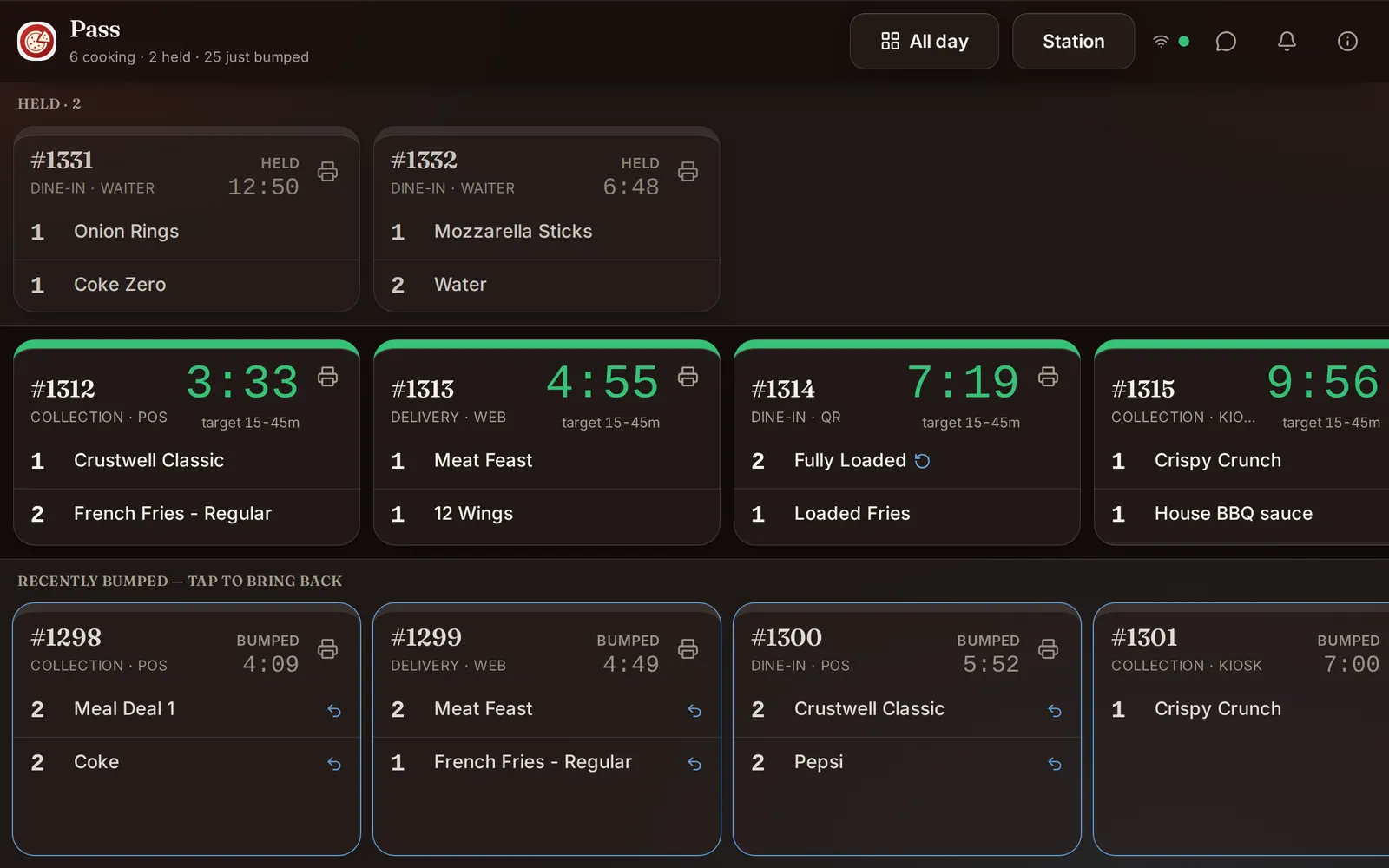
Stations, holds and recall
Stations
A station is a working view for a preparation area. Keep station ownership clear. A cook should not need to watch unrelated items, but the expediter needs enough context to coordinate the order.
Route products and components deliberately. Test bundles, shared sides and drinks. Decide where an item appears when two stations contribute to it, and who marks it complete.
Held courses
Table service may need starters, mains and desserts paced rather than fired together. DineHarbor supports order courses and a kitchen flow where later courses can remain held until the authorised step releases them.
Define who can fire a course and how the kitchen sees the hold. Never rely on a verbal call alone if the screen still shows the item as active. Practise a guest asking for the next course early and a waiter delaying it.
Recall
A bumped item may need to return to view because it was completed by mistake or needs checking. DineHarbor provides a recall action and keeps a recall view according to kitchen configuration.
Recall should be easy enough during service but not a substitute for clear completion. Train staff to say why an item came back and ensure the pass understands its state.
When a KDS earns its place
A display is most valuable when the restaurant has several order sources, multiple preparation stations, high ticket volume or a need to coordinate courses. Live state helps the team see work rather than sorting a rail of paper.
It can also reduce the need to print a separate ticket at every station. That may save paper and make changes visible, but only if screens are positioned safely and staff use them consistently.
Look for current problems: lost tickets, duplicate preparation, unclear modifiers, the pass repeatedly asking for status, or online orders being copied by hand. Choose one measurable problem for the pilot.
Do not buy screens simply because a KDS looks modern. A one person kitchen with a short menu and one till may find a reliable printer calmer.
When printers are still right
Paper is portable, familiar and visible without touching a screen. A kitchen can mark it, attach it to packaging and continue through some device faults. Receipt printers may also drive a cash drawer at the till.
Printers have their own failure modes: paper runs out, heat damages tickets, routing is misconfigured and changes may create a second strip. Noise can hide the alert, while too many tickets become difficult to sort.
A mixed setup can work. Use screens for live preparation and a printer for packing or failover. DineHarbor supports receipt and kitchen printers using Bluetooth, network or USB where the device and printer are compatible. Its KDS includes printer failover support.
Read the restaurant printer setup guide before deciding the backup path.
Set up a KDS in five steps
1. Draw the current flow
Follow an order from entry to handover. Write down every person, printer, screen and verbal call. Mark where items wait and where mistakes occur.
2. Define stations
Create only the stations the kitchen actually operates. Name them in staff language. Assign products and components, then let each station lead review the list.
3. Place equipment safely
Keep screens readable without blocking movement, heat controls or cleaning. Plan power, network and secure mounts. Avoid long cables across working routes. Follow equipment and electrical safety guidance.
4. Configure states and sound
Agree what new, preparing, held and completed mean. Choose alerts that can be heard without making the kitchen stressful. Set recall behaviour and the printer backup.
5. Run a mock service
Send collection, delivery and table orders together. Add modifiers, courses, a cancelled item and a late change. Disconnect a screen or network route in a controlled test and use the fallback.
Watch the kitchen KDS guide with the whole kitchen team. Each person should practise their own station and the pass view.
Measure the pilot
Record order preparation time, remakes, missing items, late handovers and staff questions before and during the pilot. Use the same service periods where possible. Numbers alone do not explain a problem, so review a few tickets with the team.
Ask whether information arrives at the right station, whether options are readable and whether completion happens at the correct moment. A lower screen time is not helpful if staff bump tickets early to clear the view.
Keep a paper fallback for the pilot. Move fully only after the team has handled an ordinary peak and a controlled failure.
Daily operating checks
Before service, check power, network, screen brightness, station assignment, sound and printer paper. Send a test item to every route. Confirm unavailable menu items are updated.
During service, one person should own device faults and station changes. Cooks should not troubleshoot accounts while tickets wait. After service, clean equipment according to its instructions and review any recalled or unusually late tickets.
A KDS should make kitchen work more visible and calm. If it adds taps without removing confusion, revise the process rather than asking staff to work around it.
Plan for a failure
Write a short fallback that any shift lead can follow. It should say how to accept new orders, where tickets print or are written, how stations communicate completion and how the team avoids making an order twice when service returns.
Test the fallback outside a live peak. Disconnect one screen in a controlled way, confirm printer failover or the agreed manual route, then restore it and reconcile ticket states. Check that no completed order returns as new and no held course fires unexpectedly.
Keep spare printer paper, charging cables and support details in a known place. Record the fault and the exact time, since that helps distinguish a device issue from a network or routing problem. A calm recovery plan is part of the KDS, even though it sits outside the screen.
Ready to run one station with your own menu? Start the 30 day free trial with no card needed.
Questions and answers
What does a kitchen display system do?
It sends structured order items to the right preparation screens, lets staff update their state and keeps the pass informed.
Is a screen better than a kitchen printer?
A screen helps with live status and routing, while paper can be simple and resilient. Many restaurants use both where the workflow benefits.
Can DineHarbor recall a completed kitchen item?
Yes. Its KDS has a recall flow, along with stations, held courses and printer failover support.
See it in DineHarbor
About the author
Editorial team
The DineHarbor team writes this blog for restaurant owners and managers. Every article is checked against the product before it is published, so what we describe is what the software does.
All articles by DineHarbor team