
Turn a Paper Menu Into an Online Menu
Learn how to photograph a paper menu, review an AI menu import, fix prices and options, add allergens and prepare clear translations before publishing.
6 min read
On this page
In short: photograph each paper menu section in good light, import the images, and treat the result as a draft. Check every name, description, price, option and allergen before publishing. A careful review is faster than typing from scratch while keeping the restaurant responsible for the final menu.
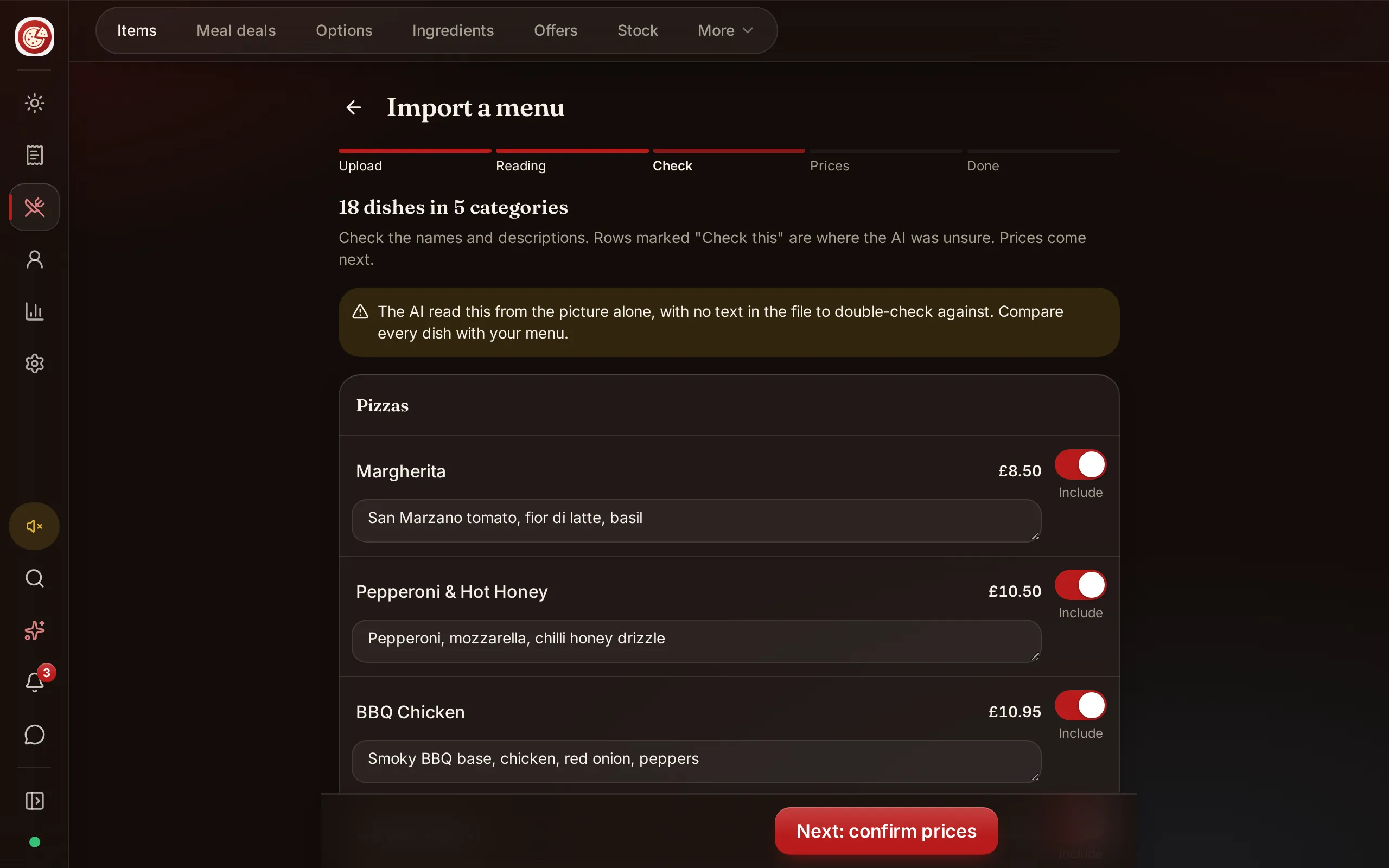
DineHarbor's menu import from a photo reads dishes, descriptions and prices into a draft for the owner to review. It uses AI credits and does not publish unchecked content automatically.
Prepare the paper menu
Start with the newest approved menu. Remove handwritten notes that are not meant for customers. If the menu has old prices, correct the source before taking pictures so reviewers are not forced to remember which version wins.
Separate inserts, drinks, desserts and seasonal pages. Put them in the order you want to review, even if the online categories will later differ. Assign one person who knows the menu to approve the result.
This is a good moment to remove clutter. Mark products that are no longer sold, descriptions that need rewriting and prices waiting for a decision. Importing a messy menu faithfully only moves the mess online.
Take clear photographs
Place the menu flat on a plain surface. Use even light and avoid a lamp reflection across glossy paper. Hold the camera directly above the page so text lines remain straight.
Fill the frame without cutting the edges. Check the image at full size before moving on. Small prices, decimal points and allergen symbols are easy to lose in blur.
For a large menu, photograph one section at a time. Overlapping images are better than a distant picture where every word is tiny. Keep the section heading in each image so dishes can be grouped.
Use these quick checks:
- Every name and price is readable when zoomed.
- No hand, glass or shadow covers text.
- The page is upright.
- Options and footnotes are included.
- The image shows only the intended menu.
Avoid including customer details, staff notes or documents in the background. Menu images become working data and should contain only what is needed.
What the AI reads
The DineHarbor menu import is designed to turn menu photos into draft dishes, descriptions and prices. Watch the menu import guide before the first attempt.
AI can misread decorative fonts, columns, currency marks and small option text. It may join two descriptions, separate a price from its dish or interpret a heading as a product. There is no responsible universal accuracy percentage.
The right question is not whether the import looks mostly right. It is whether every field customers and staff rely on has been checked.
Check names and descriptions
Compare line by line with the approved source. Keep names short enough for a phone and kitchen ticket. A description should explain the dish, not repeat the name.
Correct spelling and remove claims the kitchen cannot support. If a description says vegan, gluten free or nut free, verify the recipe and cross contamination process rather than trusting the printed wording or import.
Check every price
Read digits aloud from the source and draft. Decimal errors are easy to miss visually. Check sizes and extra charges, not only base prices. Use a second person for final price review when possible.
Place a test order and compare the basket total with manual arithmetic. Include an option, deal and tax treatment used by the restaurant.
Check allergens and calories
Do not infer regulated allergen information from a dish name or generated description. Use controlled recipes and supplier specifications. DineHarbor can store calories and allergens, but the restaurant must confirm them.
Read the UK allergen information guide if it applies to your business.
Fix categories, sizes and options
Paper menus often compress structure to save space. A line such as small, medium and large may belong to a product, a whole category or a group of toppings. Online ordering needs that relationship stated clearly.
Create categories that help guests decide, such as pizzas, sides, drinks and desserts. Avoid a category with dozens of unrelated items. Put popular choices where they are easy to find without duplicating products.
Use options for genuine choices. Mark a size or required base as required. Leave optional extras optional. Set minimum and maximum selections for deals so the guest cannot submit an incomplete meal or choose more than the price covers.
The menu options and deals guide walks through this part of setup. Test the cheapest and most expensive valid combination, plus one invalid combination. Check how each appears on the kitchen ticket.
Add useful photos carefully
A paper menu import does not need a photo for every dish. Begin with accurate text and structure. Add images for key products only when they show the food honestly.
Crop consistently, avoid text baked into the image and compress files so the mobile menu stays fast. Keep a dish recognisable under different screen shapes. Do not use an image from another restaurant or a stock picture that misrepresents portion or presentation.
Translate the menu
DineHarbor supports menu translations in English, Arabic, Spanish and French. Translation should begin after the source menu is approved, or every correction has to be repeated.
Treat generated translations as drafts. Food names, regional terms, spice levels and dietary wording need a fluent reviewer. Keep brand names consistent and do not translate a protected product name into something misleading.
Arabic needs a right to left review on a real phone. Check how prices, numbers and option controls sit beside the text. Spanish and French accents should remain intact on customer screens and printed tickets.
Create a short terminology list for recurring words. Decide how the restaurant describes sizes, meal deals, allergens and cooking levels in each language. Consistency helps guests more than literal wording.
Review before going live
Use a sign off list:
- Every category and dish is present once.
- Prices match the approved menu.
- Required options cannot be skipped.
- Unavailable products are handled correctly.
- Allergens come from verified records.
- Translations have been reviewed by a fluent person.
- Collection, delivery and table orders reach the right place.
- The menu works at 360 pixels wide.
Ask someone who did not build the menu to order a common meal. They will notice unclear choices the builder has learned to overlook.
Keep the paper menu as evidence of the starting point, but make one digital record the controlled source after launch. When a price or recipe changes, update it through the menu process rather than editing only a poster or marketplace listing.
Plan a short review after the first live week. Search for items guests could not find, options staff had to explain and dishes that reached the wrong station. These are signs that the menu structure needs work, even when the imported words are technically correct. Make the source menu clearer, then check every connected ordering route again.
AI saves the first round of typing. Careful ownership makes the result safe and useful. Explore the wider approach on the DineHarbor AI page.
Ready to turn your own menu into a checked draft? Start the 30 day free trial with no card needed.
Questions and answers
How accurate is menu import from a photo?
Accuracy depends on the image and menu. Always check every dish, price, option and allergen before publishing because no percentage can guarantee your menu.
Can I import a PDF menu?
This article only confirms import from menu photos. Turn suitable PDF pages into clear images or use photographs, then check the current product screen for accepted files.
Can AI identify allergens safely?
Treat any suggested detail as a draft. Confirm allergens from controlled recipes and current supplier information before showing them to guests.
See it in DineHarbor
About the author
Editorial team
The DineHarbor team writes this blog for restaurant owners and managers. Every article is checked against the product before it is published, so what we describe is what the software does.
All articles by DineHarbor team